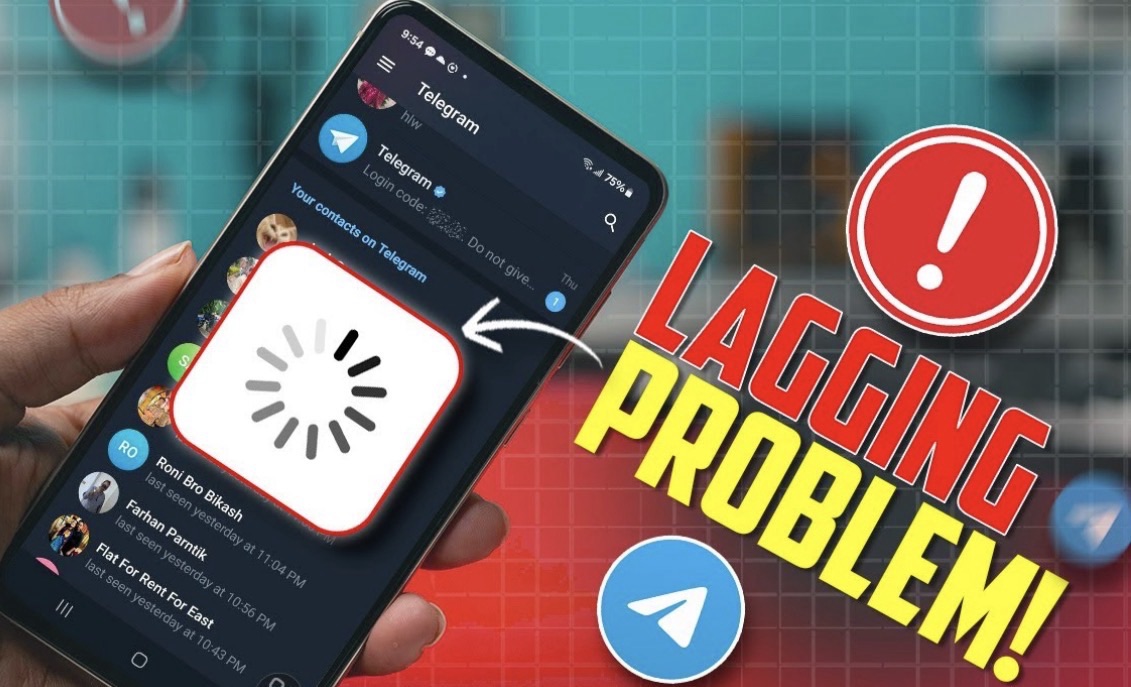
Telegram slowness often stems from cache buildup, network issues, or outdated app versions, generally resolved by clearing the cache, checking internet speed, or updating to the latest version. If the app is lagging, disable battery optimization, and for slow downloads, ensure data usage is set to high in settings
Troubleshooting Steps for Slow Telegram:
- Clear Cache (Mobile): Go to Settings > Data and Storage > Storage Usage > Clear Cache.
- Check Network: Toggle Airplane Mode or switch from Wi-Fi to Mobile Data to test for connection issues.
- Update Application: Ensure you are using the latest version from the Google Play Store or App Store.
- Disable Data Saver: Turn off data saver mode on your phone as it can restrict Telegram’s background data.
- Use Telegram X: Consider switching to Telegram X on Android, which is designed to be smoother and faster.
- Restart/Reinstall: Restart your device, or if necessary, reinstall the app to resolve performance lag.
Specific Performance Issues:
- Slow Media/Downloads: In Data and Storage, ensure automatic media download is enabled and set to high usage, particularly on Wi-Fi.
- Lagging Android App: Disable battery optimization for Telegram, as it can slow down background processes.
- Slow Desktop/Web: If the web version is slow, switch to the official Telegram Desktop app for better performance.
Note: If these steps do not work, it might be a temporary service outage.

 News
News

 Technology
 Technology